


Website Support
The topics below address some of the issues encountered most frequently by our users. If you have additional questions, please submit a ServiceNow Support Portal Ticket
A Drupal 9/10 Training Guide is also available as a Google Doc for help with our Drupal 9 Upgrade.
To request an account on any Drupal site, submit a ServiceNow Support ticket. A Seawolf ID is required.
Drupal website editors must complete the Drupal Training for Content Editors course on Canvas. This training is required for accessibility compliance and covers general web content guidance. The Web Office provides Drupal-specific support for managing websites and will give you access to the course before enabling your Drupal account.
For Drupal help, submit a support ticket or attend the Web Office’s biweekly Drupal drop-in meetings.
Table of Contents
What is caching?
Caching is the process that stores copies of web pages and files in a temporary storage location (not the actual web server). Caching helps to improve the page performance and the time it takes to download and render a page for users. Drupal websites have three levels of caching.
- The user’s web browser will cache pages so the next time the user wants to view the same page, it can be quickly retrieved from the browser cache, instead of downloaded anew from the web server.
- The Drupal application will cache pages for a set amount of time, usually up to 6 hours. Note: Do not change this setting. Changing this setting will negatively impact the site's performance.
- Varnish, a caching system in between Drupal and the network, will cache pages for some set amount of time, usually up to 6 hours. If a requested page is in Varnish, that is the version of the page delivered to the browser. Varnish only caches content for use via Anonymous SSL (see below).
Whenever a user requests a page, if the page exists in one of these caches, that is the version of the page that is sent to the user's web browser. If the page is not cached, Drupal sends the page to the user's browser and keeps a copy in Drupal's cache and in Varnish.
Varnish and Acquia Purge
Acquia Cloud, our Drupal hosting platform, uses a module called Acquia Purge to watch for certain changes. When a node is changed and published, Acquia Purge adds the node to a queue for clearing from Varnish. The purging process runs hourly. However, cache rules can be somewhat complex, and other settings may prevent a specific item from being purged from Varnish when expected.
Content in a View
Some content is displayed both as a Node and a View.
- A node is sometimes thought of as the page you create when you Add a new piece of content with a Content Type (like a Basic Page, Landing Page, Article or Faculty/Staff Profile).
- A view is a dynamically generated list of nodes, usually of a specific content type. The lists can be all nodes, or even just the most recent 1 item. Views are usually inserted into nodes (like a Basic Page or Landing page) in addition to the node's "Body" content. Common views on SSU sites are a list of Faculty and Staff in a department, a list of News Articles, a list of Events, the Homepage Top Notice, Forms & Resource Links, and Lecture Series).
Both nodes and views can be cached in Varnish. Sometimes, when a node is updated, a related view might not be immediately cleared from the Drupal and Varnish caches.
What do caching issues look like?
Sometimes, when you edit and publish content, and then go look at the page, you won’t immediately see the change you made.
Sometimes you might update a node, but the related view that includes the node's content doesn't immediately update.
This is usually because the content is cached in Drupal and/or Varnish.
Don't panic, caching is a good thing for your site's performance.
However, if you can't wait for the change to take effect for all site visitors, here are some things to try.
First, try this:
- Clear your browser cache and reload the page.
- Try visiting the page using Incognito mode, or a use different browser (Chrome, Firefox, Safari, Edge, etc.).
- Clear the Drupal cache (Drupal menu > Shortcuts > Clear Cache > Click the Clear Cache button).
- Wait for that to process, then clear your browser cache and reload the page.
If the content that is not updating is in a View, try this:
- While logged into Drupal, visit the node you changed to verify that the change was published.
- Visit the page with the view, clear your browser cache and reload the page.
- Copy the path of the page (everything after "sonoma.edu/") with the view, and manually purge it.
- Drupal menu > Shortcuts > Clear Cache > Manual Purge
- Paste the path into the Paths to be purged field.
- Click Queue.
Note: Do not change any of the settings on the Performance pages. This will negatively impact the performance of your site. Please contact the Web Office if you think a change needs to be made.
What about the Clear Acquia Purge queue button?
There is a new button "Clear Acquia Purge queue" on the Performance page, next to the Clear all caches button. Clicking this will erase the list of pages currently in the Acquia Purge queue. Usually, you should not push that button.
How to report a Website Caching Issue to the Web Office
Go to the ServiceNow Support Portal, search for web issues, and select "Web Hosting and Publishing"
In the ticket, include:
- Screenshots that include the URL in your browser bar of the content on the page that is changed but not displayed (so we can verify where the problem is and when it is fixed)
- The reason why the page must be cleared on an urgent basis instead of waiting for Drupal and Varnish to clear automatically.
Allow 4 hours for a response to urgent issues during normal business hours. For all other issues, allow 24-48 hours for a response.
Please note, urgent issues are defined as those that convey critical information to the campus community such as emergency notifications or significant system or building outages. Due to the workload demands, we ask that non-urgent issues observe the 6 hour cache purging processes.
General Advice When Sharing URLs
- After making a change, use your browser's Incognito mode, without logging into Drupal, to test that the change is visible, or use a different browser to test the page.
- Before sharing the URL, wait an hour after saving the change for the page to be automatically cleared from Varnish. Test the URL (not logged into Drupal), and then share it.
Yes, here are the currently available options for SSU faculty.
Department Drupal website, Faculty profile page
Who can see the site: public facing
Who can edit the site: updated by department content lead
Good for: This is a good option if the department website is on SSU Drupal, and the desired faculty website is minimal, similar to a CV.
How to get this: Talk with your department Drupal content lead.
Examples: Biology Faculty & Staff (each person listed has a Faculty/Staff profile page)
Google Sites in SSU’s Google Workspace (formerly Google Apps)
Who can see the site: public facing, or can be shared to limited users
Who can edit the site: faculty member, or can be shared to limited editors
Good for: This is a good option if the faculty member wants to "do their own thing," and not necessarily use a Drupal site. This should not be used for a course website or course materials (use Canvas instead). Best for a personal interest site, or to share research. If the site is used for a class project, it will need to comply with accessibility standards.
How to get this: Login to your SSU Google account, then click the Google Apps menu icon (

Drupal Faculty Lab/Research pages
Who can see the site: public facing
Who can edit the site: faculty member, department Drupal content leads
Good for: If the Department wishes, the Web Office can add the Faculty Lab/Research content type to the department Drupal site. Faculty can be given a Faculty role, and create/edit their own pages within the department site. This should only be used for their SSU professional/research work. It should not be used for a course website. Faculty will have to complete the Drupal training in Canvas. Site will need to comply with accessibility standards. Faculty Lab/Research pages are not offered to Emeritus faculty. These are not intended to function like a blog. Note: the department should have multiple faculty who want Faculty Lab/Research pages, and the department's web editors will need to be able to provide some support for the faculty creating these pages. This is not a good option if the faculty member wants their grad students to edit the Faculty Lab pages.
How to get this: Talk first with your department Drupal content lead to find out if there is interest in adding this content type. Then you and your Department content lead should contact the Web Office to request the content type be added to your department's Drupal site.
Example: Biology Faculty Labs
Canvas
Who can see the site: private - instructor, enrolled students, other enrolled members
Who can edit the site: faculty member, other teachers in the course
Good for: This should be used for course websites and materials.
How to get this: All university courses are added to Canvas automatically. Login to check Canvas for your site. If you don't find it, contact CTET.
Off-Campus Hosting
Who can see the site: private or public facing
Who can edit the site: faculty member, and anyone the faculty member gives access to
Good for: Faculty may choose to host their content with an off-campus provider. This option should not be used for official university sites or any use that would be considered required for SSU courses or other SSU business. This type of site is not supported by IT & Web Office. IT does not redirect web.sonoma.edu or Drupal site URLs to off-campus sites.
How to get this: The IT Web Office doesn't recommend or endorse any off-campus hosting providers. There are many website hosting providers available. Some are free, others cost money. Try searching for "website hosting" and other terms important to you. If the site will be used for SSU students, or if you're working with a government agency, or using government funds (including grants), you may be required to meet accessibility standards, so look for a provider that can provide WCAG 2.1 AA compliant templates.
Department Legacy website (web.sonoma.edu), Faculty profile page
Who can see the site: public facing Effective June 2021, all department sites have migrated to Drupal, and are no longer available on the legacy web server.
Who can edit the site: updated by department web editor
Good for: This is a good option if the department website is on web.sonoma.edu, and the desired faculty website is minimal, similar to a CV.
How to get this: Talk with your department web person.
Effective January 12, 2022: Legacy website user directories will be deleted as part of a project to retire the legacy web server. The Web Office will contact all user directory owners in Fall 2021 about options for backups or moving content elsewhere.
User Sites on web.sonoma.edu/user/...
IT no longer provides individual user accounts and directories on web.sonoma.edu, and IT Web Services has been working to identify old/abandoned sites for removal. While no end-of-life date has been set for the server web.sonoma.edu, a deadline for backing up or moving content in web.sonoma.edu/user sites has been scheduled: Noon on January 12, 2022. After that, all /user sites will be deleted. Faculty and staff who already have sites with URLs beginning web.sonoma.edu/user/ should consider the options listed above, and move their content to the site that best meets their needs.
Questions?
Please contact the Web Office if you have questions about any of these options.
Note: As of fall 2018, the IT Web Office no longer creates user directories on our legacy web server, web.sonoma.edu. Eventually, all web.sonoma.edu/user directories will be removed, as part of our long-term web publishing platform changes.
Yes, we have posted a copy of all the lesson content from the course, Drupal Training for Content Editors and Leads, on Google Drive as a single Google Doc. You must be logged into your Seawolf Google Drive account to view this file.
Please note: reviewing the training content here is not a substitute for completing the course in Canvas. SSU employees who need access to edit an SSU Drupal site must complete the Drupal Training for Content Editors and Leads in Canvas. After submitting your ServiceNow Support Ticket, the Web Office will contact you to enroll you in the course.
If I put up a page today, how soon will it show up in search engines?
Search engines are constantly crawling SSU's websites. Assuming the search engine can find your page, it should update the index for your modified page within a 1-7 days. If your site is not showing up in search results, or if old versions of your page are showing up in results, contact the IT Web Office.
If I delete a page, how long until it is removed from the search index?
If a deleted page is still showing up in search results, make sure you have unpublished the page on Drupal. If there is still a problem, call the Web Office. Some search engines provide a cached version of pages after they have been deleted from the web server, so even after your old page is gone, it may live on in search results for several weeks. It can be helpful to make sure your site no longer links to the old page.
FASD is a searchable directory of all current SSU employees. Employees are responsible for keeping their entries up to date.
Updating your entry is easy.
- Go to https://ldaps.sonoma.edu/fasd/
You can also use the URL people.sonoma.edu as a shortcut, or you can use the link in the menu on most SSU websites - click the "hamburger" menu button, then click Directory. - Click Update your information.
- Login via Online Services.
If you are already authenticated, this step will be skipped. - A new page will be displayed, with a form labeled "Edit Your Existing Directory Entries."
Some information is locked and cannot be updated directly. If this information is incorrect, please contact the IT Help Desk for assistance. If you wish a preferred name be displayed, contact Human Resources or Faculty Affairs. - You can update your Phone number, Building Name, Room number, and URL.
- For phone numbers, use the full number, not just the extension. The desired format is area code, prefix and number
Example: (707) 664-0000 - If you have an employee profile on your SSU department website, you can add that in the URL field. Make sure the URL is complete, and includes the https:// or https:// at the beginning.
- For phone numbers, use the full number, not just the extension. The desired format is area code, prefix and number
- Display entry? Yes or No. If you select Yes, it will be displayed in the FASD. If you select no, then only the IT Help Desk and a few other departments can access the data.
- Click Update This Entry.
Sonoma State's central website publishing platform, Drupal, is available for all official departments - e.g. Divisions, Schools, and Departments. SSU Drupal is intended to build sites that are primarily public-facing, though there are tools to limit access to content to Seawolf account holders (students, employees, and some contractors with LDAP credentials).
Most SSU departments already have a Drupal website.
New departments may request an SSU Drupal site by submitting a ServiceNow Support Ticket. In the "Details" section, please include:
- the official name of the department
- the purpose of the website
- the SSU employees who will help to build, edit and maintain the site
Requests for sites that are not for official departments are not automatically granted. Usually, pages or mini-sites for specific projects or events should be built as part of the sponsoring department's site.
The Web Office will respond with any follow-up questions needed to establish the site.
IT Web Services has developed and maintains a set of template files that may be used for official University sites that are not hosted on SSU Drupal. These may be shared with vendors or contractors who are building sites for SSU departments, programs, and services.
The template files are available on SSU IT's Gitlab site. Please submit a ServiceNow Support Ticket to request access.
Web accessibility is the practice of applying design principles to make web sites, web applications and web content accessible to persons with disabilities who may be using assistive technologies to access the site.
It is the policy of the CSU system to make information technology resources, including web sites, web applications and web content, accessible to all CSU students, staff, faculty and the general public regardless of disability.
SSU web sites must conform to Section 508 of the Rehabilitation Act of 1973. The University has appointed a steering committee to develop plans for ensuring the University meets the requirements of the CSU Accessible Technology Initiative. See SSU's Accessibility site for more information.
Is Your Web Site Accessible?
The Web Office can evaluate department sites for accessibility compliance.
Automated Scan with Popetech
Popetech is an application that can crawl a website, checking for potential accessibility and quality issues.
Manual Evaluation
Some accessibility requirements require a human to validate. The Web Office can use the manual evaluation process developed by the CSU ATI Web group to identify accessibility problems and possible solutions. Submit a Service Now Support Ticket.
Sonoma State University Web Policy provides rules and guidelines for SSU websites.
See Web Policy on the University Policies site for more information.
New Brand
Effective March 25, 2021.
Here are samples of SSU brand colors for SSU websites. These are available on Drupal sites using the new SSUedu Child theme.
| Sample | Color Name | RGB | Hex | Use with |
|---|---|---|---|---|
| University Blue | 0 76 151 | #004C97 | White | |
| University Blue 50% | 172 202 233 | #ACCAE9 | Black | |
| University Blue 25% | 232 242 254 | #E8F2FE | Black | |
| Black | 0 0 0 | #000000 | White | |
| Dark Grey | 83 85 84 | #535554 | White | |
| Light Grey | 205 207 211 | #CDCFD3 | Black | |
| White | 255 255 255 | #FFFFFF | Black | |
| Field dark | 123 59 12 | #7B3B0C | White | |
| Field | 239 181 50 | #EFB532 | Black | |
| Field light | 255 227 156 | #FFE39C | Black | |
| Hills dark | 50 96 39 | #326027 | White | |
| Hills | 122 188 87 | #7ABC57 | Black | |
| Hills light | 217 237 164 | #D9EDA4 | Black | |
| Salmon dark | 152 54 61 | #98363D | White | |
| Salmon | 245 148 112 | #F59470 | Black | |
| Salmon light | 255 214 199 | #FFD6C7 | Black | |
| Grape dark | 109 65 129 | #6D4181 | White | |
| Grape | 174 138 201 | #AE8AC9 | Black | |
| Grape light | 230 204 224 | #E6CCE0 | Black | |
| Lakes dark | 29 93 101 | #1D5D65 | White | |
| Lakes | 95 203 213 | #5FCBD5 | Black | |
| Lakes light | 208 239 239 | #D0EFEF | Black | |
| Warning | 172 0 0 | #AC0000 | White |
Sometimes, when you edit your Drupal site, you may see a message like this one:
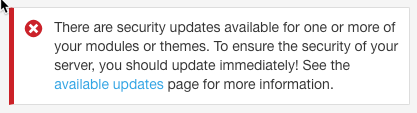
This is a warning from Drupal that a security update has been released and must be installed.
IT monitors all Drupal security update releases, and manages software updates centrally. When an update is released, IT downloads and tests it, then applies it to all SSU Drupal sites, usually within 1-3 business days. In most cases there is no noticeable downtime, and nothing department content owners and editors need to do about the update.