SSU-SECURE Wi-Fi Access on Android Devices
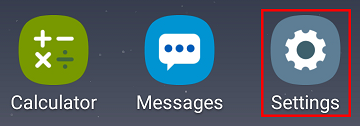
From the main Android Apps Menu, select Settings.
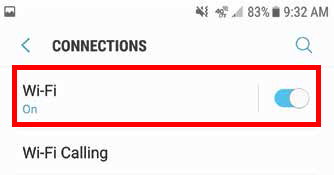
In the settings menu, navigate to your Wi-Fi settings
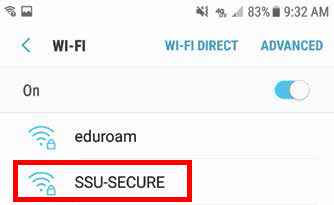
Select SSU-SECURE from the list of networks.
When the SSU-SECURE settings window appears, select the following information as seen in the image and click connect. Some options may not be available depending on your device’s OS.
EAP Method: PEAP
Phase 2 Authentication: MSCHAPV2
CA Certificate: Use system certificates
User Certificate: Unspecified
Online Certificate Status: Require certificate status
Domain: solar.sonoma.edu
Identity: Seawolf ID (Username)
Anonymous Identity: (Leave blank)
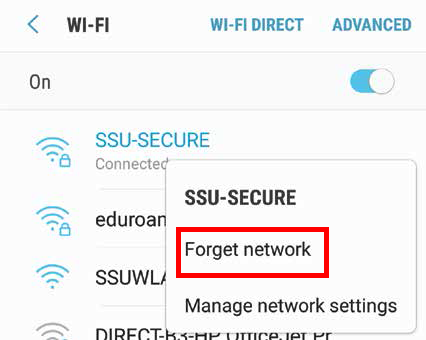
Password: SSU PasswordIf you’re having any difficulty connecting to the SSU-SECURE network, you may need to forget it then reconnect or add "@solar.sonoma.edu" to the end of your Seawolf ID in the Identity field. To forget the SSU-SECURE network, navigate back to the networks menu and tap and hold the SSU-SECURE network. When another menu pops up, select Forget network.